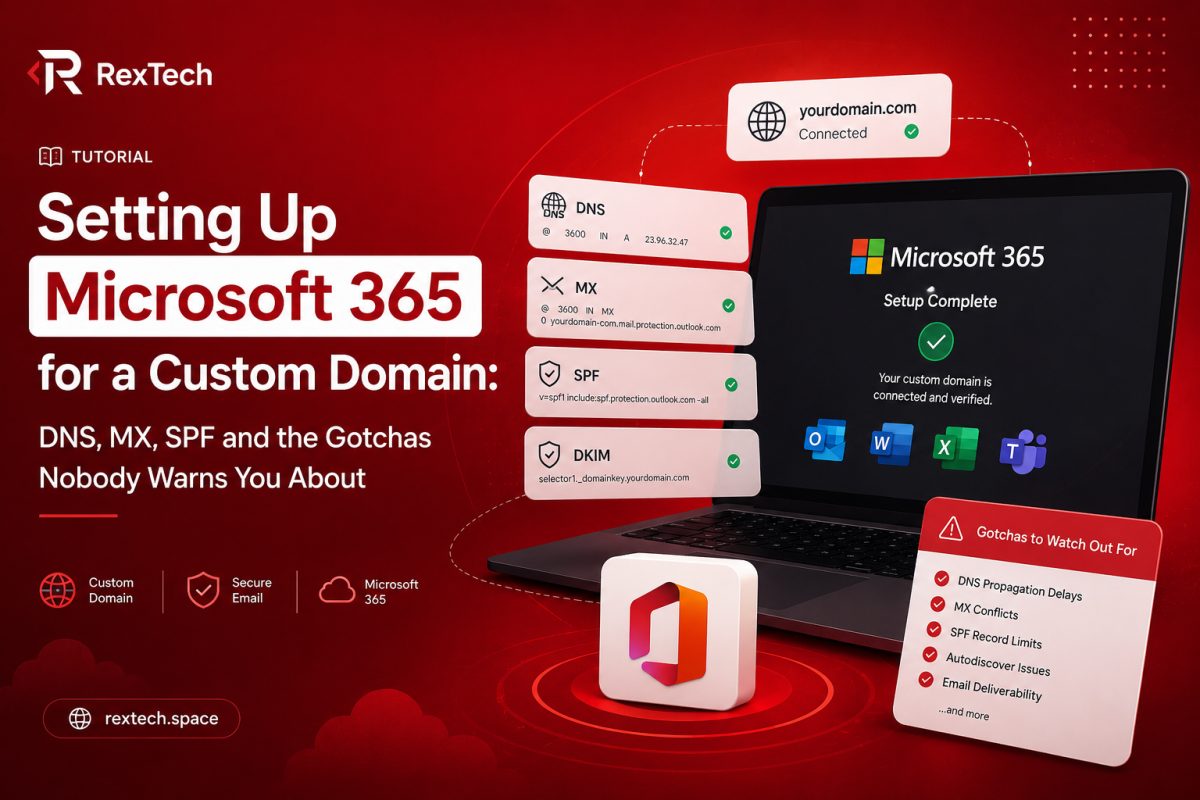
I've lost count of how many times I've set up email for a custom domain at this point. It sounds like the kind of task that should take fifteen minutes. Add a few DNS records, wait for propagation, done. In reality, every single time I've done this, something has gone sideways in a way the official documentation doesn't really prepare you for. This post is about the last time I did it properly, migrating rextech.space to Microsoft 365 Business Basic, and everything I ran into along the way including the DNS conflicts I had to untangle and a separate near-disaster with a client's Google Workspace subscription that I'll get into later.
I want to write this the way I wish someone had explained it to me the first time I touched DNS records for a live domain. Not the sanitized "here are the five records you need" version you get from Microsoft's setup wizard, but the actual mental model of what's happening and why things break.
Why I Moved to Microsoft 365 in the First Place
Rex Tech Institute had been running email through a cheaper setup that worked fine early on but started showing its limits as the business grew. Deliverability was inconsistent, some client emails were landing in spam, and I needed something that looked professional when I was sending proposals or invoicing clients. Microsoft 365 Business Basic gave me proper mailboxes tied to the domain, decent spam filtering, and the kind of reliability you want when your email is effectively your business's front door.
The plan sounded simple on paper. Sign up, verify the domain, point the DNS records at Microsoft's servers, migrate any existing mail, done in an afternoon. I budgeted about two hours for the whole thing. It ended up taking most of a day, and not because Microsoft's process is badly documented, it's actually decent, but because the domain already had DNS records from a previous setup that needed to be untangled first.
Understanding What Each DNS Record Actually Does
Before getting into what went wrong, it's worth explaining what these records actually do, because I think a lot of the confusion around email DNS setup comes from treating the records as a checklist to copy-paste rather than understanding what each one is telling the internet.
MX records tell the world where to deliver email for your domain. When someone sends a message to you@rextech.space, their mail server looks up the MX record for rextech.space to find out which server should actually receive that message. If this record points to the wrong place, or if there are conflicting MX records, mail can bounce, get delayed, or worse, get delivered to a server you no longer control.
SPF records are a TXT record that lists which servers are allowed to send email on behalf of your domain. This exists to fight spoofing. Without a correct SPF record, receiving mail servers have no way to verify that an email claiming to be from your domain actually came from a server you authorized, and that hurts your deliverability because spam filters get suspicious of unverified senders.
CNAME records in this context are mostly used by Microsoft for autodiscover, so that email clients like Outlook can automatically find the right server settings for a mailbox without you manually typing in server addresses.
DKIM is another layer on top of SPF, using cryptographic signing to prove that an email genuinely came from your domain and wasn't tampered with in transit.
Put together, these records are basically your domain's way of vouching for itself to the rest of the internet's mail servers. Get them right and mail flows smoothly. Get them wrong and you're either not receiving mail at all, or your outgoing mail gets flagged as suspicious and buried in everyone's spam folder.
What I Actually Ran Into
Here's where things got messy. rextech.space had been set up years earlier with a different email provider, and that provider had left behind its own MX and SPF records. When I went to add Microsoft's MX record, I found there was already one pointing somewhere else entirely, plus an old SPF TXT record that only authorized the previous provider's mail servers.
The instinct here might be to just add Microsoft's records alongside the old ones. That's actually one of the biggest mistakes people make with DNS for email, and I want to explain why because it trips up a lot of people who are new to this.
MX records support having multiple entries with different priority values, so technically you can have more than one. But if you leave an old MX record pointing at a provider you no longer use, and that provider's mail server still exists and is still accepting mail, you can end up in a situation where some emails get delivered to a mailbox you can't access anymore. I've seen this happen, someone assumes switching providers automatically stops old mail delivery, and months later they find out client replies have been silently landing in an inbox nobody's checked since the migration.
SPF is even less forgiving about duplicates. You're only supposed to have one SPF TXT record per domain. If you have two separate v=spf1 TXT records, most mail servers will either pick one arbitrarily or, worse, treat the ambiguity as a sign of misconfiguration and start failing SPF checks on all your outgoing mail. This is exactly what was happening with rextech.space. The old SPF record was still there from the previous provider, and adding Microsoft's SPF entry as a second, separate TXT record created a conflict that was quietly making mail sent from the new Microsoft 365 mailboxes look suspicious to receiving servers.
The fix wasn't to add a new record. It was to merge them into a single SPF record that included both the old provider's mail server if I still needed it (in this case, I didn't, so I removed it) and Microsoft's includes. A merged SPF record for Microsoft 365 typically looks something like this, using include:spf.protection.outlook.com combined with the domain's other legitimate senders, all inside one TXT record rather than several.
The CNAME Conflict
There was a second issue waiting for me. The domain already had a CNAME record for autodiscover pointing at the old provider's infrastructure, left over from years earlier. Microsoft's setup wizard wants to add its own autodiscover CNAME pointing to autodiscover.outlook.com, but you can't have two CNAME records for the same subdomain, DNS just doesn't allow it. Unlike MX or TXT records where duplicates cause silent conflicts, a duplicate CNAME will usually just get rejected outright by most DNS providers, or worse, cause inconsistent resolution depending on which name server answers the query first.
I had to delete the old autodiscover CNAME entirely before Microsoft's replacement would take effect properly. This is a small thing, but if you don't know to look for it, you can spend a frustrating amount of time wondering why Outlook clients aren't auto-configuring even though every other part of the Microsoft 365 setup looks correct in the admin panel.
Propagation Is Real, and It Lies to You
One thing that catches people off guard, myself included even after doing this many times, is DNS propagation. When you change a DNS record, it doesn't take effect everywhere instantly. Different DNS resolvers around the world cache records for different lengths of time based on the TTL, time to live, value set on each record. This means you can update a record, check it from your own computer and see the new value, then have a client on a different network still seeing the old, broken configuration for hours or even up to 48 hours in stubborn cases.
The practical lesson here is to lower TTL values on records you're about to change ahead of time, ideally a day or two before you plan to make the actual change, so that when you do flip the record, the short TTL means resolvers refresh their cache quickly instead of holding onto stale data for the default 24 or 48 hour window. I didn't do this the first time I dealt with a DNS migration years ago and paid for it with a client convinced their new email "wasn't working" when really it was just propagation delay on their specific network.
Verifying Everything Actually Worked
Once the records were in place, I didn't just trust the Microsoft 365 admin panel's green checkmarks and call it done. I ran the domain through a few independent checks. MXToolbox is the one I reach for most often, it lets you check MX records, SPF validity, and even simulate what a receiving mail server sees when it looks up your domain. I also sent test emails to Gmail and Yahoo addresses specifically, not just between mailboxes on the same domain, because intra-domain mail delivery can work fine even when your SPF setup is broken for external recipients. The real test is whether mail sent to an outside provider lands in the inbox and not spam.
I also checked the raw headers of a received test email to confirm SPF, DKIM, and DMARC were all passing. This is something a lot of people skip because it looks intimidating, but most email clients let you view the original message source, and you're really just looking for lines that say something like "spf=pass" and "dkim=pass" near the top. If any of those say "fail" or "neutral" instead of "pass," that's your sign something in the DNS setup still needs attention even if the mailbox itself seems to be receiving mail fine internally.
The pclp.org.uk Situation
While I was deep in this kind of DNS and email admin work, I ran into a related but separate emergency with a different domain, pclp.org.uk. Their Google Workspace subscription had been canceled, and Google gives you a grace period before the account and all its data get permanently wiped. I found out about this close to the deadline, which is not a position you want to be in when it comes to email data.
The recovery process meant working through Google's account recovery and billing reactivation flow before the grace period closed, verifying domain ownership was still intact, and making sure none of the DNS records tied to the Workspace setup had been touched or removed in the interim, because a lapsed subscription sometimes comes with warnings about MX records needing to stay pointed at Google's servers to avoid losing incoming mail during the recovery window. It was a stressful few hours, but it reinforced something I already believed and now actively push on every client I work with: know your renewal dates for anything tied to your business's email and domain infrastructure, and don't let a subscription lapse silently. A calendar reminder thirty days out costs nothing. Losing years of business correspondence because a card expired costs a lot more than the subscription itself.
What I'd Tell Someone Doing This for the First Time
If you're about to set up Microsoft 365, or really any hosted email provider, on a domain that's had email running on it before, here's the honest version of what to expect. Don't assume the domain is a blank slate. Check what's already sitting in the DNS records before you add anything new. Look specifically for existing MX records, any TXT record starting with v=spf1, and any existing CNAME for autodiscover. If you find old records from a previous provider, decide deliberately whether you're removing them entirely or merging them, don't just leave them alongside the new ones and hope for the best.
Lower your TTLs a day or two before the actual cutover if you can plan that far ahead. Verify with an outside tool, not just the provider's own setup wizard, since the wizard is checking whether the record exists, not necessarily whether it's the only one of its kind or whether it's actually resolving correctly worldwide yet.
And test with real external email addresses, not just mailboxes within the same domain, because that's the only way to catch an SPF or DKIM problem before a client tells you their invoice landed in spam.
Email infrastructure is one of those unglamorous parts of running a tech business or serving clients that nobody notices when it works and everybody notices the moment it breaks. Getting it right the first time, or at least knowing exactly where to look when it doesn't work, has saved me and the people I've worked with a lot of headaches since I started paying real attention to this stuff instead of treating DNS as a copy-paste checklist.